This blog post is born out of a headache I recently faced with Power Automate.
The goal: Send an email to a shared mailbox and automatically create an Azure DevOps work item.
The challenge: Creating the ticket is straightforward. The real difficulty lies in properly linking attachments and ensuring those inline images render correctly in the work item body—instead of appearing as broken links.
Documentation on this topic is sparse, so I'm documenting the complete solution here.
Prerequisites
Create a Personal Access Token (PAT)
Before building the flow, you need a PAT to authenticate with the Azure DevOps API.
- ●Navigate to your ADO organization:
https://dev.azure.com/{Your_Org} - ●Click your Profile Icon in the top-right corner, then select Personal access tokens
- ●Click + New Token
- ●Configure the token:
- ●Provide a descriptive name
- ●Set an appropriate expiration date
- ●Grant these scopes:
- ●Work Items: Read, write, & manage
- ●Code: Read
- ●Project and Team: Read
- ●Click Create and immediately copy the token—you won't be able to view it again
Step 1: Configure the Trigger and Variables
Begin with the When a new email arrives in a shared mailbox (V3) trigger.
Critical setting: Enable Include Attachments by setting it to Yes.
Initialize these variables at the start of your flow:
| Variable | Type | Initial Value |
|---|---|---|
WorkItemID | Integer | null |
PAT | String | Your personal access token |
UpdatedDescription | String | triggerOutputs()?['body/body'] |
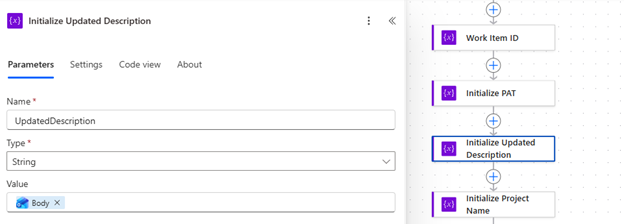 Variables initialization in Power Automate
Step 2: Create the Work Item
Add the standard Create a work item action from the Azure DevOps connector.
After the work item is created, capture the returned Work Item ID into your WorkItemID variable for use in subsequent steps.
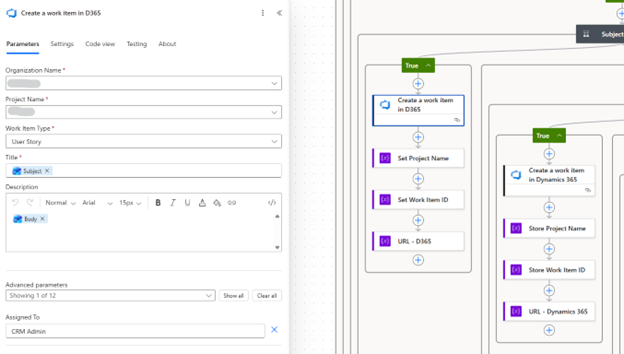 Create work item action configuration
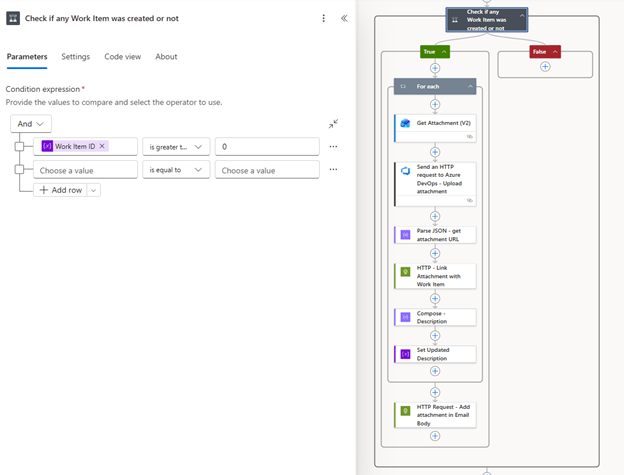 Setting the Work Item ID variable
Step 3: Process Attachments
This step handles each attachment from the email. Create a For each loop that iterates over the attachments from the trigger output.
3.1 Retrieve the Attachment Content
Add Get Attachment (V2) inside the loop. This action is necessary because the trigger payload typically doesn't include the complete file content.
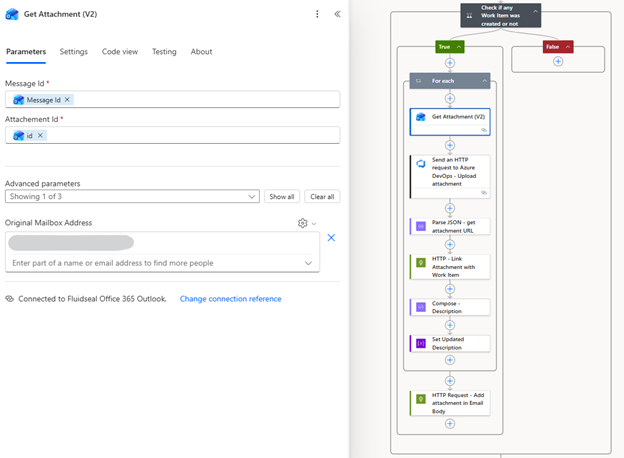 Get Attachment action
3.2 Upload to Azure DevOps
Use Send an HTTP request to Azure DevOps to upload each attachment:
| Setting | Value |
|---|---|
| Method | POST |
| Relative URI | _apis/wit/attachments?fileName=@{item()?['name']}&api-version=7.0 |
| Headers | Content-Type: application/octet-stream |
| Body | string(outputs('Get_Attachment_(V2)')?['body/contentBytes']) |
Note: Wrapping the content in
string()resolves intermittent Base64 parsing errors that can occur with binary data.
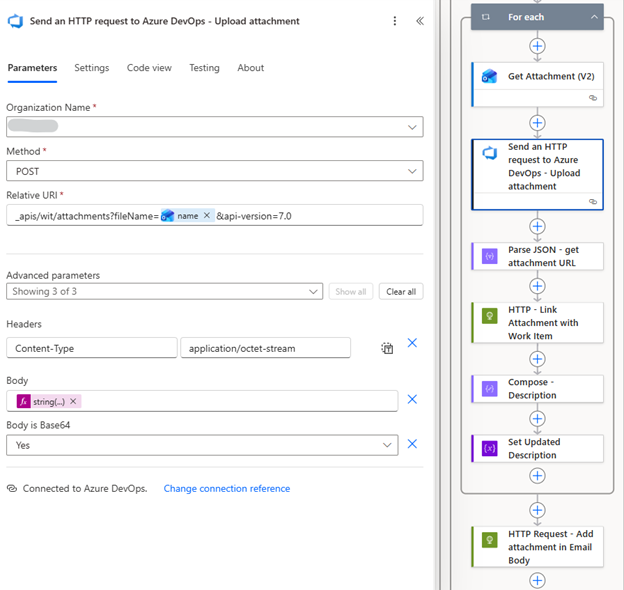 HTTP request to upload attachment
3.3 Parse the Response
Add a Parse JSON action to extract the attachment URL from the upload response. Use this schema:
{
"type": "object",
"properties": {
"id": { "type": "string" },
"url": { "type": "string" }
}
}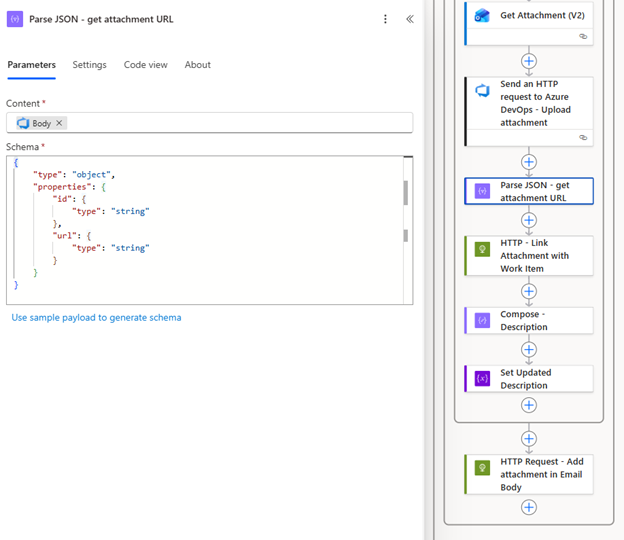 Parse JSON action configuration
Step 4: Link Attachments to the Work Item
The built-in Azure DevOps connector can return "Unauthorized" errors when linking attachments. The solution is to use the generic HTTP action with Basic Authentication.
Configure the HTTP action:
| Setting | Value |
|---|---|
| Method | PATCH |
| URI | https://dev.azure.com/{Org}/{Project}/_apis/wit/workitems/@{variables('WorkItemID')}?api-version=7.0 |
| Headers | Content-Type: application/json-patch+json |
| Authentication | Basic |
| Username | Your email address |
| Password | Your PAT |
Request body:
[
{
"op": "add",
"path": "/relations/-",
"value": {
"rel": "AttachedFile",
"url": "@{body('Parse_JSON')?['url']}",
"attributes": {
"comment": "Attachment from email"
}
}
}
]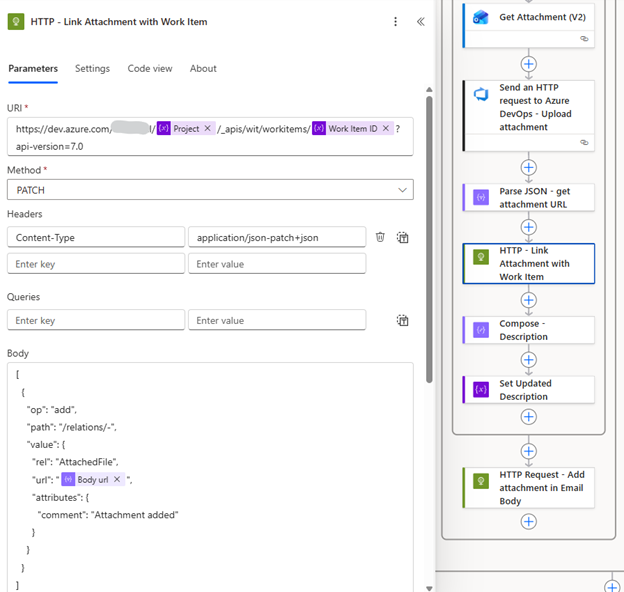 Link attachment HTTP action
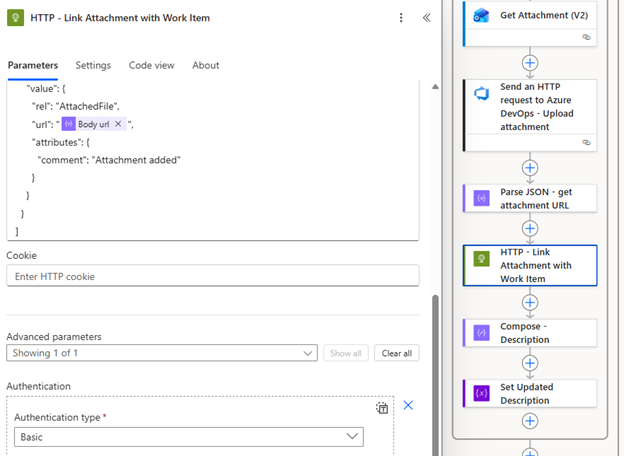 HTTP action authentication settings
Step 5: Replace Inline Image References
This is the critical step for rendering inline images correctly.
The problem: Email clients embed images using Content-ID references in the format cid:image_name. Azure DevOps doesn't recognize this format, resulting in broken images.
The solution: Replace each cid: reference with the corresponding Azure DevOps attachment URL.
Inside the loop, add a Compose action with this expression:
replace(
variables('UpdatedDescription'),
concat('cid:', outputs('Get_attachment_(V2)')?['body/contentId']),
body('Parse_JSON')?['url']
)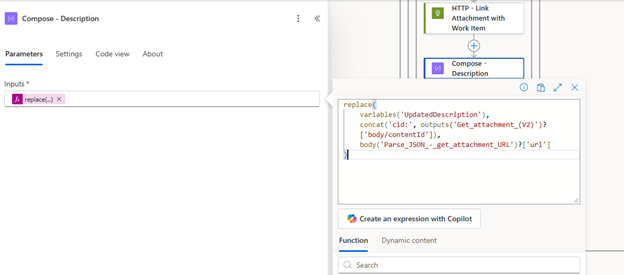 Compose action for description update
Follow with a Set Variable action to update UpdatedDescription with the Compose output:
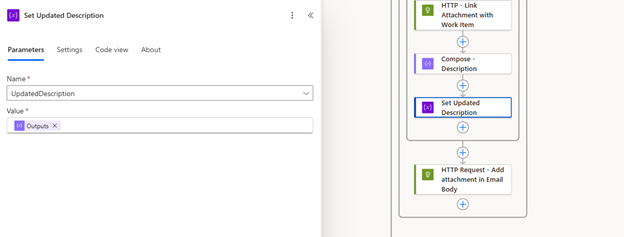 Set variable action
Step 6: Update the Work Item Description
After the loop completes, the UpdatedDescription variable contains the email body with all image references corrected.
Outside the loop, add a final HTTP PATCH request to update the work item:
| Setting | Value |
|---|---|
| Method | PATCH |
| URI | Same as Step 4 |
| Authentication | Basic (same credentials) |
Request body:
[
{
"op": "replace",
"path": "/fields/System.Description",
"value": "@{variables('UpdatedDescription')}"
}
]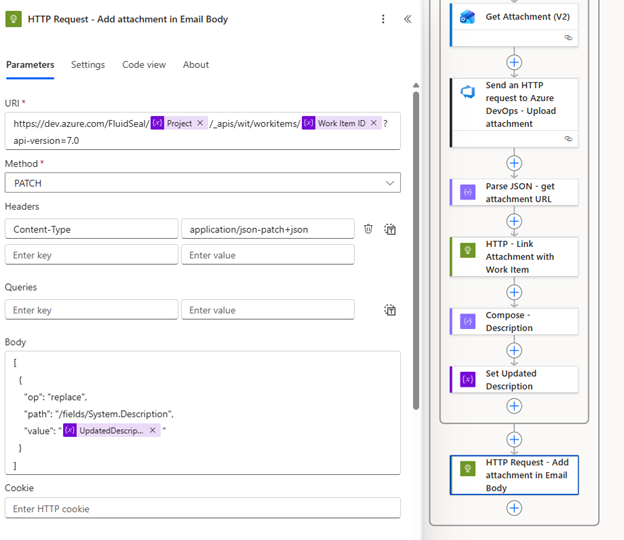 Final update action
Result
With this flow in place:
- ●Inline screenshots render correctly within the work item description
- ●File attachments (PDFs, documents, etc.) appear in the Attachments tab
- ●The complete email context is preserved in Azure DevOps
Conclusion
This solution addresses a gap in the standard Power Automate connectors for Azure DevOps. The key insight is using the HTTP action with Basic Authentication and manually replacing CID references with uploaded attachment URLs.
If you encounter issues or have questions, feel free to reach out via email. And if you're ever in Lahore, Pakistan and want to discuss automation over coffee, I'm always up for that conversation.